
In this guide we describe how to install and activate Office 2021 on your PC. If you need help, contact our customer service for help with downloading, installing, and activating.
Before installation #
To avoid conflicts with previous Office packages, we strongly recommend that you uninstall them from your computer before starting the installation, see instructions.
How to uninstall applications on PC
Step 1 #
Download the installation file for your Office package from Microsoft by selecting your language and then clicking the “Download”-button.
Download Office 2021 Professional Plus (PC) #
Choose your language first, then click download.
The file is downloaded directly from Microsoft CDN.

Step 2 #
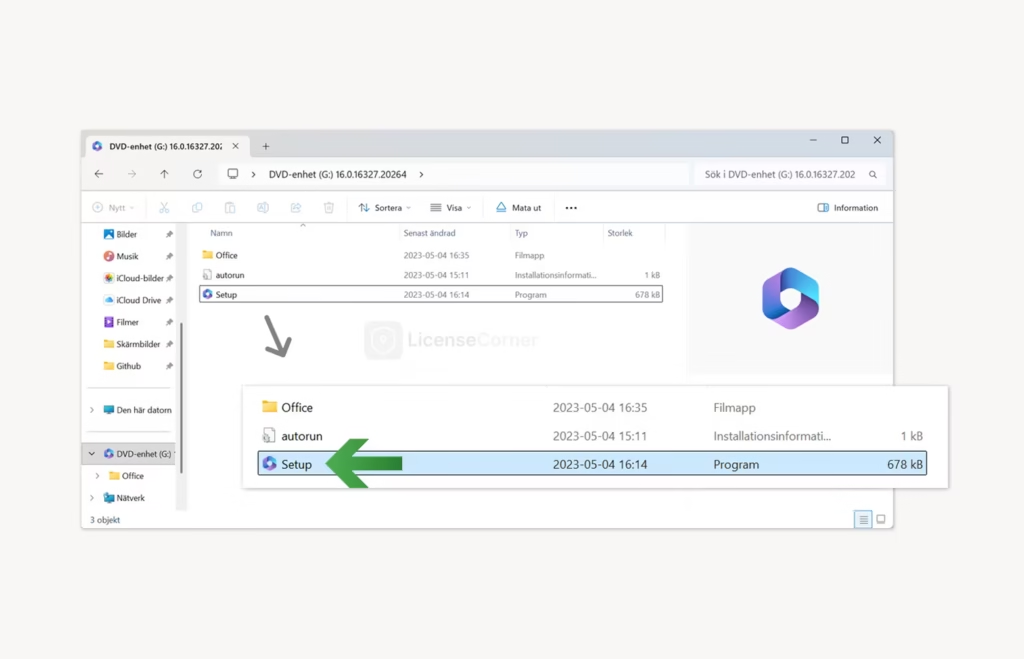
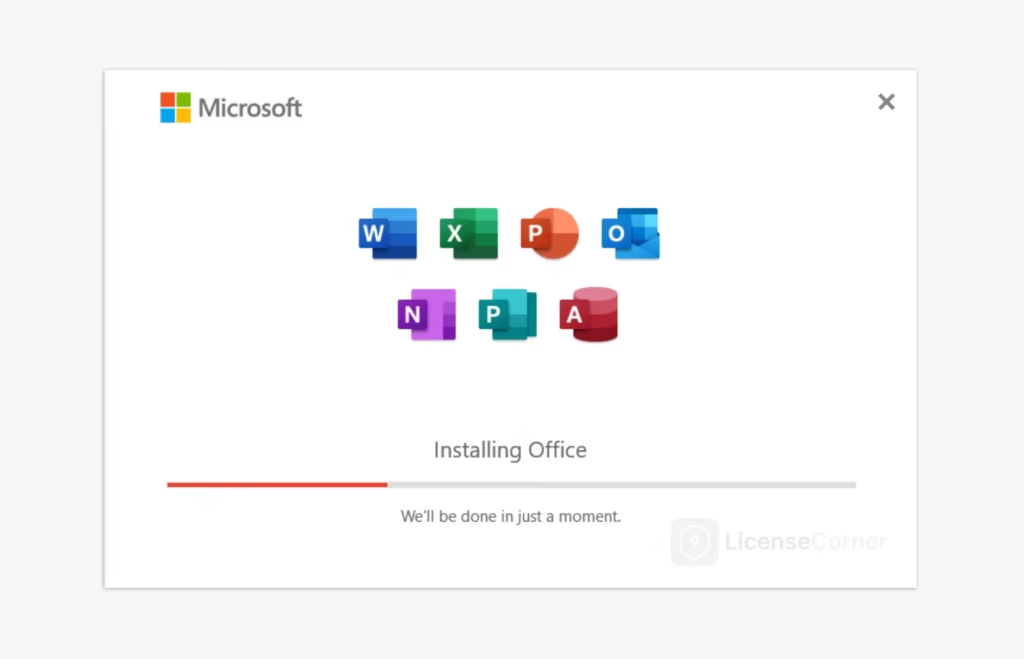
Once the download is complete, open the downloaded file which will open as a virtual disk image. Then double-click the “Setup” program in the folder that opens to start the installation.
Step 3 #
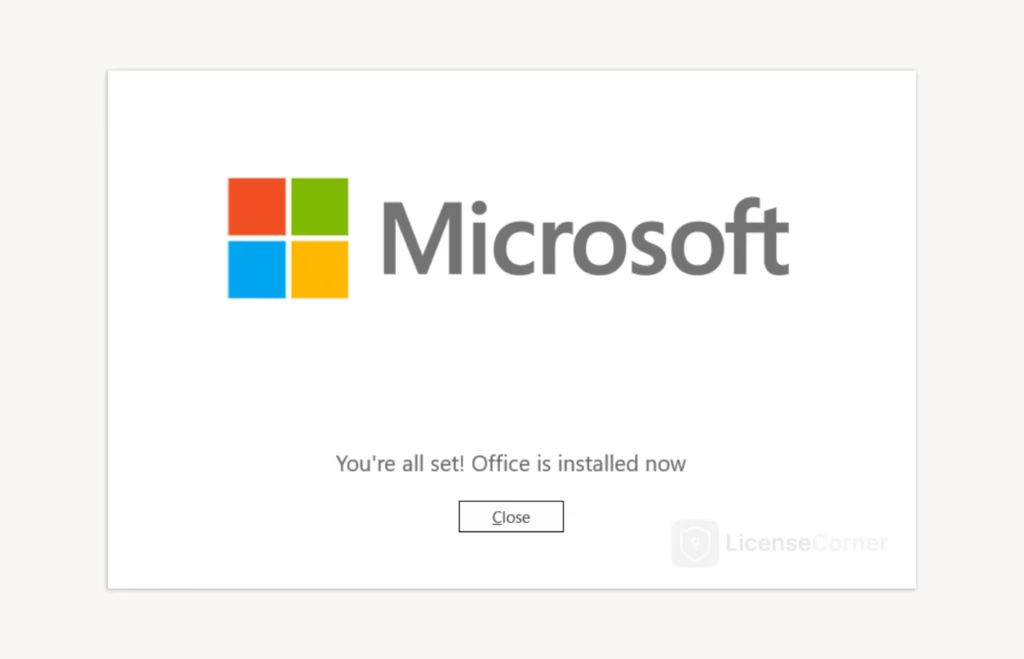
After a succesful installation press the “Close”-button.
Step 4 #
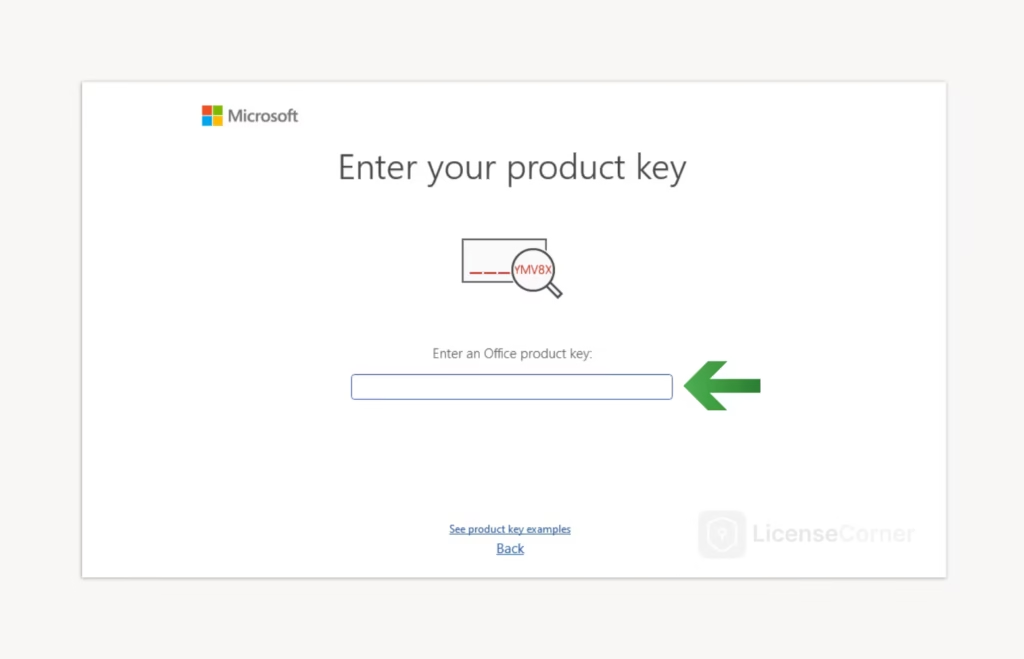
Search for “Word” in the Windows search box at the bottom of the screen and open the program. Accept the user agreements, enter your license key and you will be taken directly to the final activation window.
Step 5 #
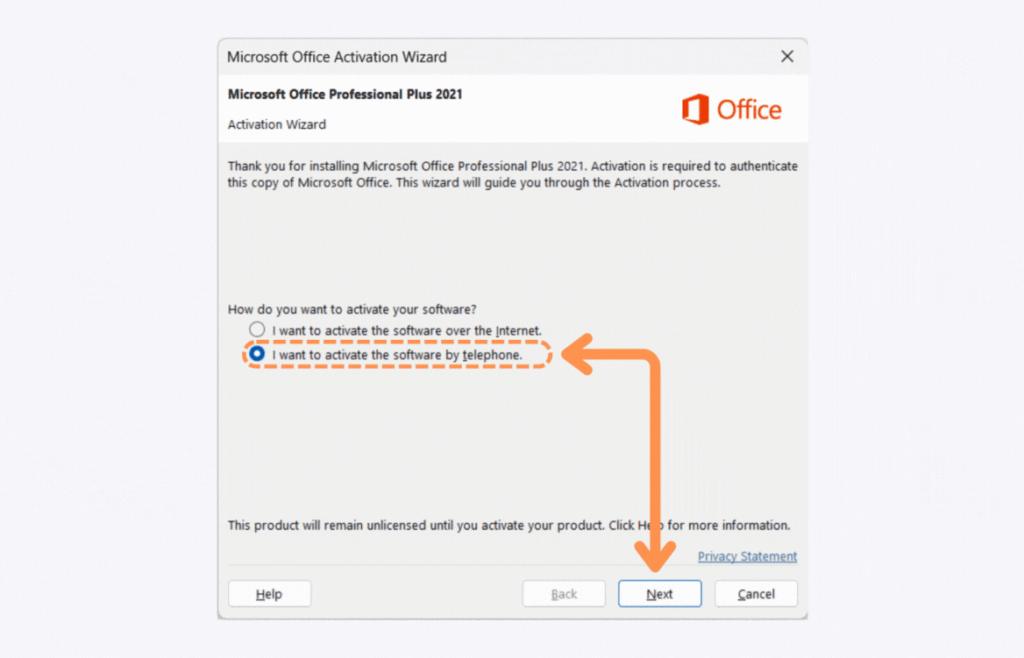
When you get to the activation window, select the option “I want to activate the software by phone” and click the “Next” button.
Step 6 #
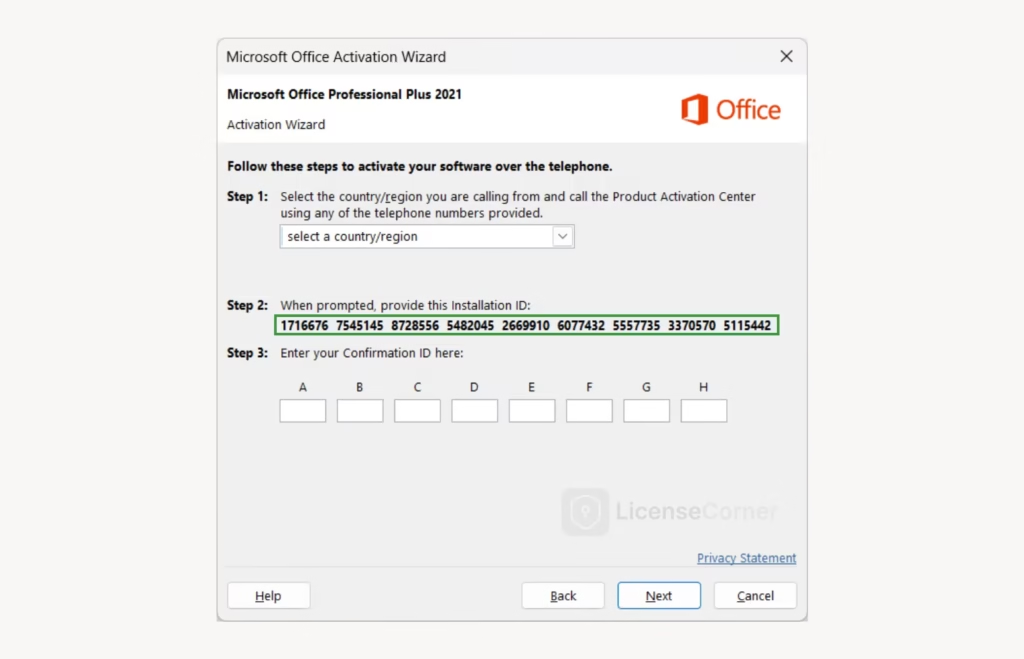
1) Note the installation ID in the activation window
The installation ID is displayed in the activation window and will be needed in the next step to retrieve your confirmation ID.
2) Start our automated activation service
Click the button below to open the service:

3) Fetch your confirmation-ID
Follow the step-by-step instructions below to obtain your confirmation-ID:
1. Verify your purchase by entering your email adress, order number or invoice number and press “Continue”.
2. Enter the Installation ID from the activation window.
3. Click the “Get Confirmation-ID” button.
4. Wait approximatley 30 seconds.
5. Your Confirmation ID will appear.
4) Complete the activation in the software
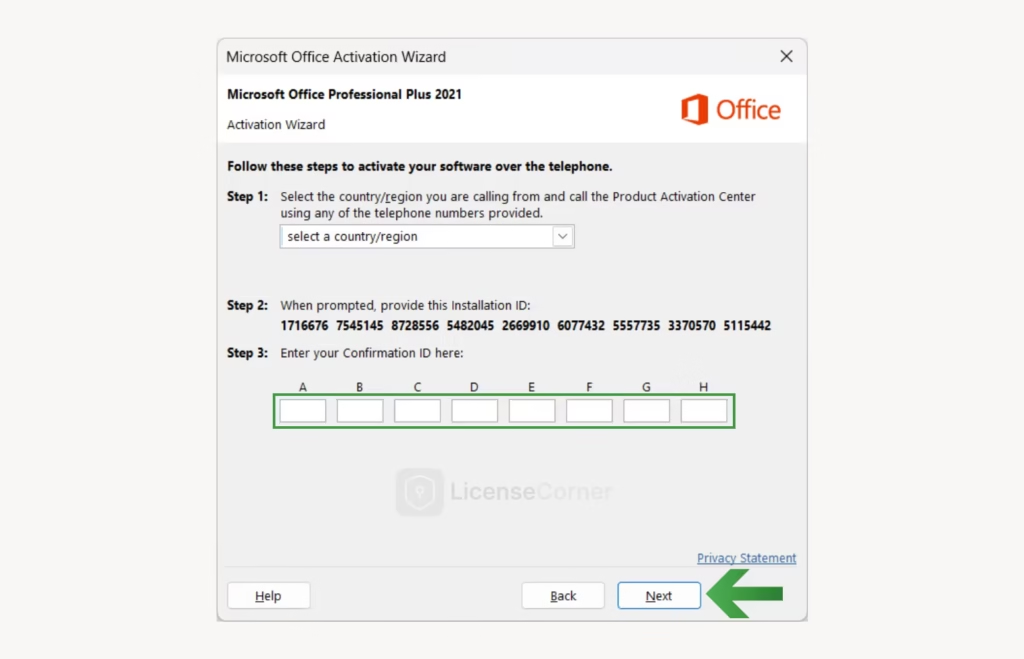
Return to the activation window, enter your confirmation ID in the empty boxes and click “Next” to complete the activation of the software.
We hope you found the installation guide useful. If you encounter any problems or need help with any step, our customer service is here to assist, click “Contact us” in the footer.