
In this guide we describe how to install and activate Office 2024 on your PC. If you need help, contact our customer service for help with downloading, installing, and activating.
Before installation #
To avoid conflicts with previous Office suites, we strongly recommend that you uninstall them from your computer before starting the installation, see instructions.
How to uninstall applications on PC
Step 1 #
Download the installer for Office 2024 Professional Plus (PC) by clicking the button below.
Download
Step 2 #
1. Run the downloaded file “MS_Office_Standard2024_Installer”. Click “Yes” when asked if you want to allow the app to make changes to grant the correct permissions to the installer.
2. Select your prefered language from the list.
3. Select 32-bit or 64-bit installation (64-bit is recommended on most systems for better performance).
4. Wait for the installation to complete.
Step 3 #
1. After installation is complete, open any Office application, such as Word.
2. If prompted, accept the terms of use for the application.
3. Open the activation window to enter your product key:
- Click “Account”.
- Click “Change Product Key”.
- Enter your product key that you received when you purchased Office and click “Activate Office”.
- Then restart the program.
Step 4 #
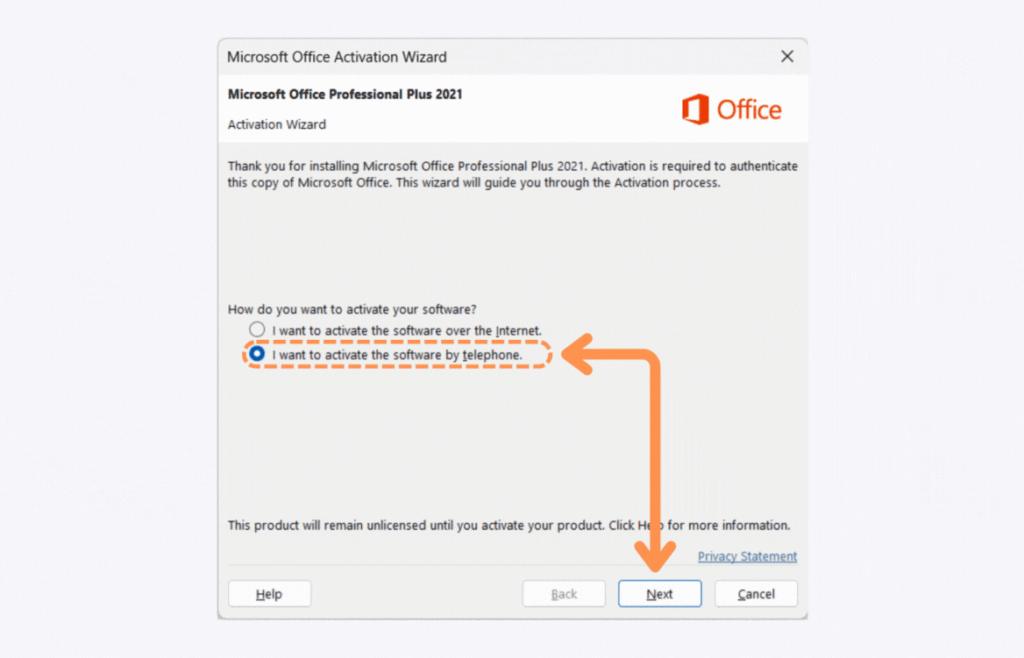
When you get to the activation window, select the option “I want to activate the software by phone” and click the “Next” button.
Step 5 #
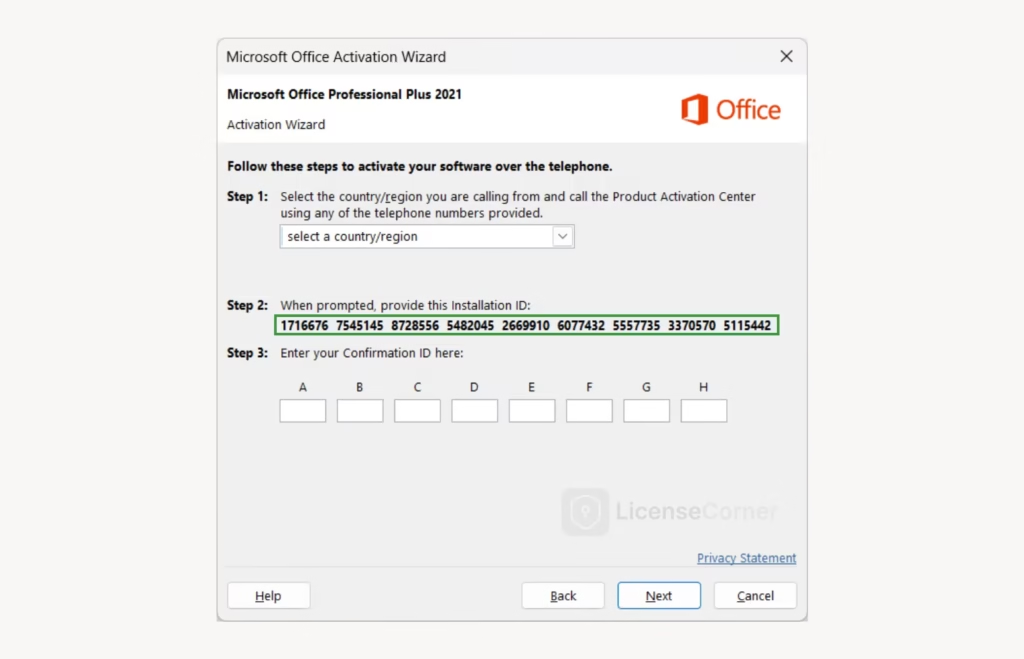
1) Note the installation ID in the activation window
The installation ID is displayed in the activation window and will be needed in the next step to retrieve your confirmation ID.
2) Start our automated activation service
Click the button below to open the service:

3) Fetch your confirmation-ID
Follow the step-by-step instructions below to obtain your confirmation-ID:
1. Verify your purchase by entering your email adress, order number or invoice number and press “Continue”.
2. Enter the Installation ID from the activation window.
3. Click the “Get Confirmation-ID” button.
4. Wait approximatley 30 seconds.
5. Your Confirmation ID will appear.
4) Complete the activation in the software
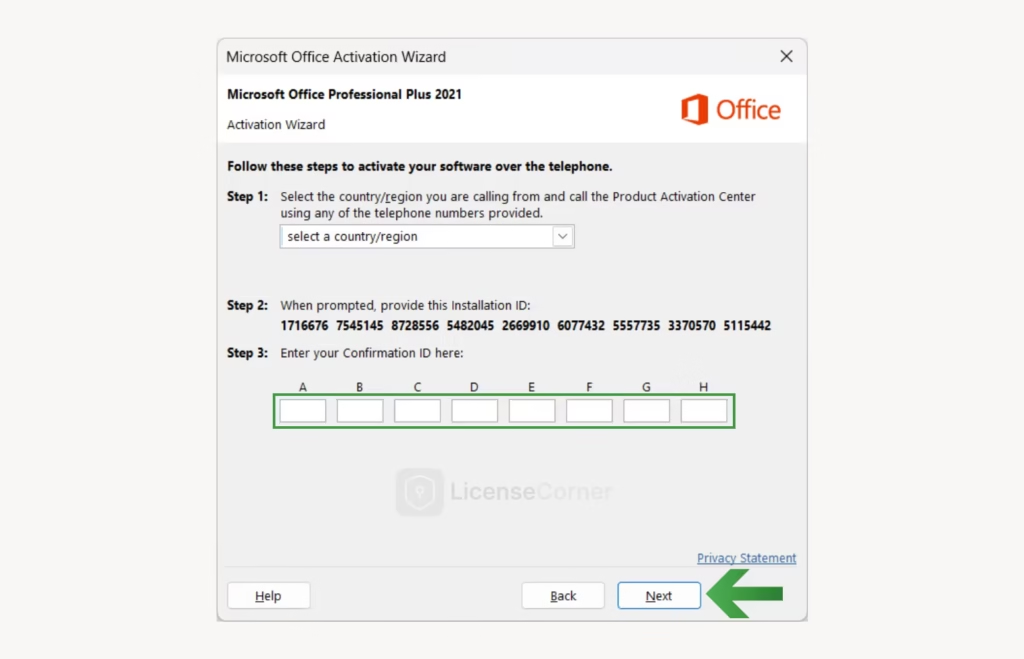
Return to the activation window, enter your confirmation ID in the empty boxes and click “Next” to complete the activation of the software.
We hope you found the installation guide useful. If you encounter any problems or need help with any step, our customer service is here to assist, click “Contact us” in the footer.