
Zum Hauptinhalt springen Zum Footer springen
LicenseCorner
  • Windows
    • Windows 11
    • Windows 10
    • Windows Server
  • Office
    • Office Suites
      • Office 2024 (PC)
      • Office 2021 (PC)
      • Office 2021 (MAC)
      • Office 2019 (PC)
      • Office 2019 (MAC)
      • Office 2016 (PC)
      • Office 2016 (MAC)
    • Individual apps
      • Outlook
      • Project
      • Visio
  • Antivirus & Security
    • Avast
    • AVG
    • Bitdefender
    • Kaspersky
    • McAfee
    • Norton
    • Panda
  • Utilities & Tools
    • Avast Utilities
    • AVG Utilities
    • CCleaner
    • IObit
  • Windows
    • Windows 11
    • Windows 10
    • Windows Server
  • Office
    • Office Suites
      • Office 2024 (PC)
      • Office 2021 (PC)
      • Office 2021 (MAC)
      • Office 2019 (PC)
      • Office 2019 (MAC)
      • Office 2016 (PC)
      • Office 2016 (MAC)
    • Individual apps
      • Outlook
      • Project
      • Visio
  • Antivirus & Security
    • Avast
    • AVG
    • Bitdefender
    • Kaspersky
    • McAfee
    • Norton
    • Panda
  • Utilities & Tools
    • Avast Utilities
    • AVG Utilities
    • CCleaner
    • IObit
0

Hi, how can we help?

Erste Schritte

  • Erste Schritte mit Windows
    • Aktivierungsanleitung – Windows 11 Home & Pro
    • Aktivierungsleitfaden – Windows Server
    • Aktivierungsanleitung – Windows 10 Home & Pro
  • Erste Schritte mit Office 2024
    • Aktivierungsleitfaden – Microsoft Office 2024 Standard (PC)
    • Aktivierungsanleitung – Microsoft Office 2024 Professional Plus (PC)
  • Erste Schritte mit Office 2021
    • Aktivierungsanleitung – Microsoft Office 2021 Professional Plus (PC)
    • Aktivierungsanleitung – Microsoft Office 2021 Home & Business (MAC)
  • Erste Schritte mit Office 2019
    • Aktivierungsanleitung – Microsoft Office 2019 Professional Plus (PC)
    • Aktivierungsanleitung – Microsoft Office 2019 Home & Business (PC)
    • Aktivierungsanleitung – Microsoft Office 2019 Home & Student (PC)
    • Aktivierungsanleitung – Microsoft Office 2019 Home & Business (MAC)
  • Erste Schritte mit Office 2016
    • Aktivierungsanleitung – Microsoft Office 2016 Professional Plus (PC)
    • Aktivierungsleitfaden – Microsoft Office 2016 Home & Business (PC)
    • Aktivierungsanleitung – Microsoft Office 2016 Home & Student (PC)
    • Aktivierungsanleitung – Microsoft Office 2016 Home & Business (MAC)
  • Erste Schritte mit Visio & Project
    • Aktivierungsanleitung – Microsoft Visio 2024/2021/2019/2016 (PC)
    • Aktivierungsanleitung – Microsoft Project 2024/2021/2019/2016 (PC)
  • Erste Schritte mit der Antivirensoftware
    • Aktivierungsanleitung – AVG
    • Aktivierungsanleitung – Avast
    • Aktivierungsleitfaden – Bitdefender
    • Aktivierungsanleitung – Kaspersky
    • Aktivierungsanleitung – McAfee
    • Aktivierungsanleitung – Norton
    • Aktivierungsanleitung – Panda

Fehlerbehebung

  • Office-Fehlerbehebung
    • So beheben Sie den Office-Fehlercode: 30182-44 / 30015-45
    • So beheben Sie: Smart App Control blockiert Ihre Installationsdatei & So beenden Sie den S-Modus
    • So beheben Sie den Fehler: Office meldet, dass Ihr Product Key für eine nicht installierte Version bestimmt ist
    • So beheben Sie den Fehler „Die Installation kann nicht fortgesetzt werden“, wenn keine Programme aufgelistet sind
    • So beheben Sie: Meldung „Vorschau abgelaufen“ in Microsoft Office
    • So beheben Sie: „Kontofehler“-Meldung in Microsoft Office
  • Windows-Fehlerbehebung
    • So beheben Sie den Windows-Fehlercode: 0x80072F8F-0x20000
    • So beheben Sie: Windows-Aktivierungsfehler 0xC004F050
    • So beheben Sie: Windows-Edition wird während der Installation nicht angezeigt

Installation & Aktivierung

  • So deinstallieren Sie Programme (Windows/Mac)
  • So aktivieren Sie Ihren Windows-Produktschlüssel
  • So führen Sie ein Upgrade von Windows Home auf Pro durch
  • So führen Sie ein Upgrade von Windows 10 auf Windows 11 durch
  • So führen Sie das Upgrade auf Windows 10 durch
  • So installieren Sie Visio 2021 (PC)
  • So installieren Sie Visio 2019 (PC)
  • So installieren Sie Visio 2016 (PC)
  • So installieren Sie Project 2021 (PC)
  • So installieren Sie Project 2019 (PC)
  • So installieren Sie Project 2016 (PC)
  • So installieren Sie Project 2024 (PC)
  • So installieren Sie Visio 2024 (PC)

Produkt-FAQ

  • Windows FAQ
    • OEM vs. Retail: Was ist der Unterschied?
    • So verlassen Sie den S-Modus in Windows 10 und 11
    • Windows 11 Systemanforderungen
    • Windows 11 Home vs. Pro: Welche Version sollte ich wählen?
  • Office FAQ
    • Alle Neuerungen in Office 2024
    • Open XML oder OpenDocument: Welches Dateiformat sollte ich verwenden?
    • Funktionieren ältere Office-Dateien in neueren Office-Versionen?

Zahlung & Lieferung

  • Was ist in der Bestellung enthalten?
  • Ist das Produkt ein Einmalkauf oder ein Abonnement?
  • Ich habe meine Bestellung nicht erhalten
  • Wo finde ich eine Quittung für meinen Kauf?
  • Akzeptieren Sie Firmenbestellungen?
  • Ist eine Garantie im Produkt enthalten?
  • In welche Länder liefern Sie?

Tipps & Funktionen

  • So finden Sie Ihren aktivierten Windows Product Key
  • So erstellen Sie einen Screenshot unter Windows und Mac
  • So fügen Sie Office-Symbole zum Desktop und zur Taskleiste hinzu
  • So verwenden Sie die Diktierfunktion in Microsoft Word

Weitere Fragen

  • Über unsere Preisgestaltung
  • Bieten Sie telefonischen Kundenservice an?
  • Bieten Sie Mengenrabatte an?
  • Wie ist Ihre E-Mail-Antwortzeit?
View Categories

So installieren Sie Visio 2021 (PC)

1 min read

In dieser Anleitung beschreiben wir, wie Sie Visio 2021 auf Ihrem PC installieren und aktivieren. Wenn Sie Hilfe benötigen, kontaktieren Sie unseren Kundendienst für Unterstützung beim Herunterladen, Installieren und Aktivieren.


Schritt 1 #

Laden Sie die Installationsdatei für Ihr Office-Paket von Microsoft herunter, indem Sie Ihre Sprache auswählen und dann auf die Schaltfläche „Herunterladen“ klicken.

[lc_download_box product=”visio-2021-pc”]


Schritt 2 #

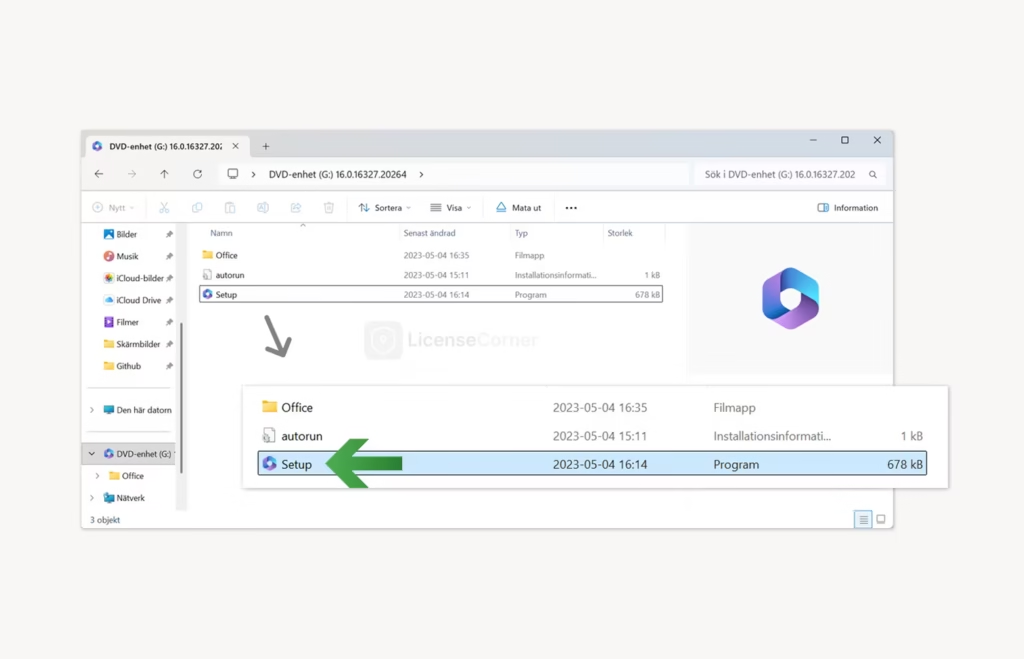
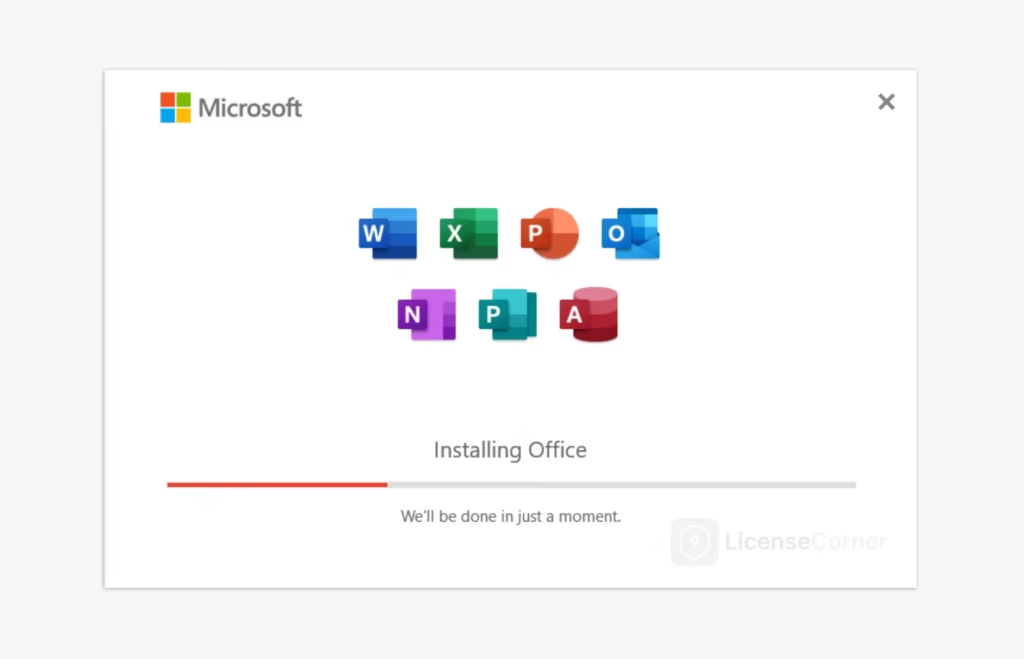
Sobald der Download abgeschlossen ist, öffnen Sie die heruntergeladene Datei, die als virtuelles Datenträgerabbild geöffnet wird. Doppelklicken Sie dann im sich öffnenden Ordner auf das Programm „Setup“, um die Installation zu starten.
i

Problem opening the installation file? Right-click the file, choose “Open with”, then select “Explorer”.

i

If the Setup file doesn’t open and is blocked by PC settings, please read how to solve it here.

Office installation: Run Setup to start installation
Office installation: Installing Office

Schritt 3 #

Nach erfolgreicher Installation klicken Sie auf die Schaltfläche „Schließen“.
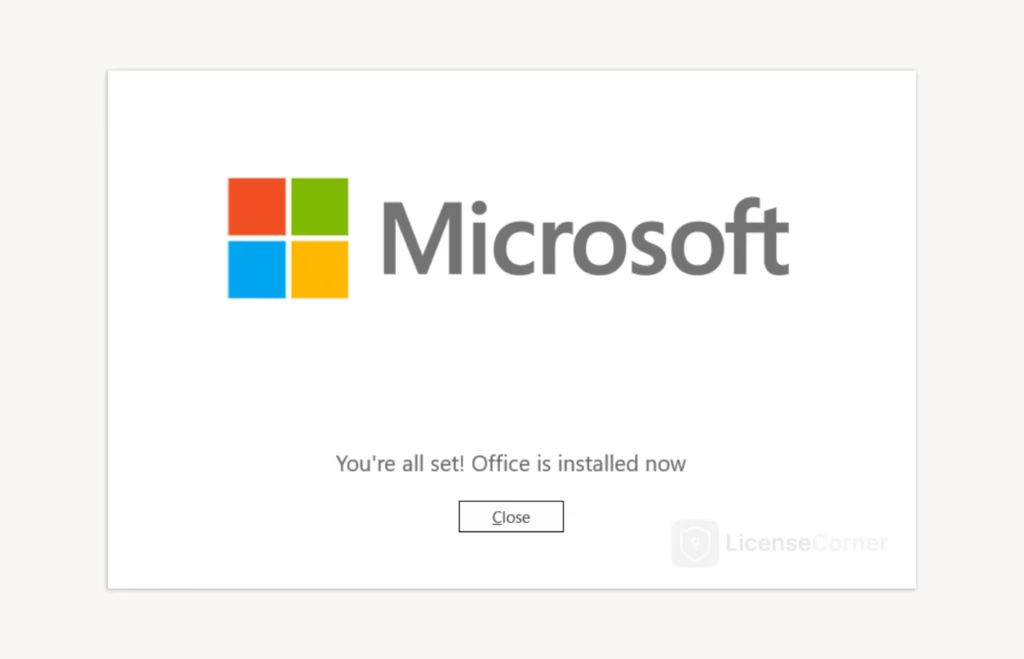
Office installation: Office is now installed

Schritt 4 #

Suchen Sie im Windows-Suchfeld am unteren Bildschirmrand nach „Visio“ und öffnen Sie das Programm. Akzeptieren Sie die Nutzungsvereinbarungen, geben Sie Ihren Lizenzschlüssel ein und Sie werden direkt zum letzten Aktivierungsfenster weitergeleitet.
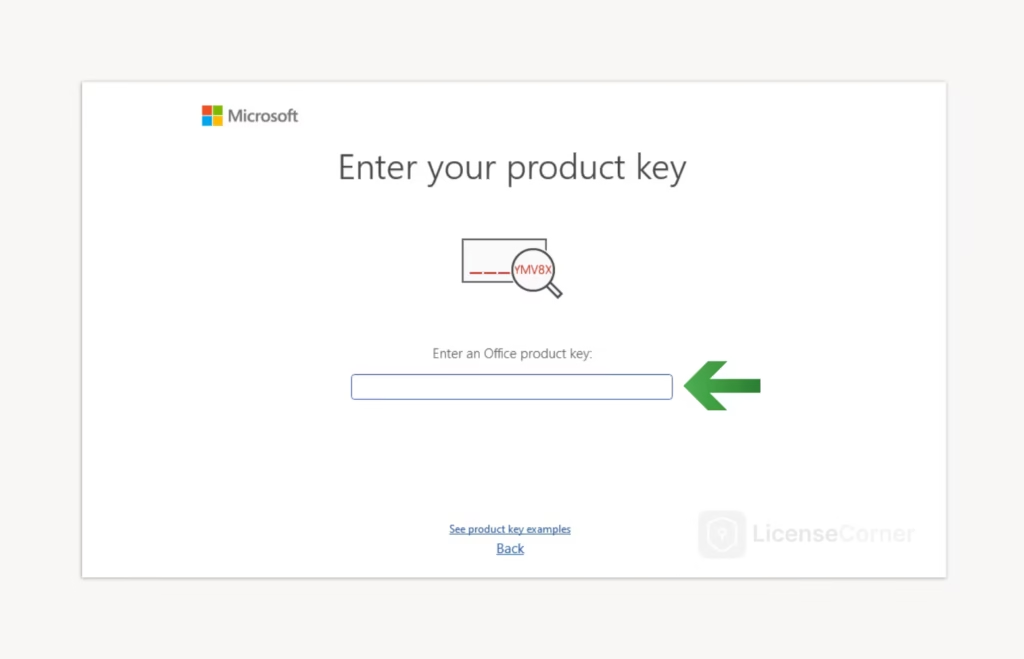
Office installation: Enter your license key

Schritt 5 #

Wenn Sie das Aktivierungsfenster erreichen, wählen Sie die Option „Ich möchte die Software über das Internet aktivieren.“ und klicken Sie auf die Schaltfläche „Weiter“, um die Aktivierung der Software abzuschließen.

i

If you are asked to sign in, select “Enter product key” instead. After completing the instructions, you can sign in or create a Microsoft account if you wish..


Wir hoffen, dass Sie die Installationsanleitung hilfreich fanden. Sollten Probleme auftreten oder Sie Hilfe bei einem Schritt benötigen, steht Ihnen unser Kundendienst gerne zur Verfügung. Klicken Sie dazu im Footer auf „Kontakt“.

Was the article helpful or not?
Still stuck? How can we help?

How can we help?

So führen Sie das Upgrade auf Windows 10 durchSo installieren Sie Visio 2019 (PC)
Table of Contents
  • Schritt 1
  • Schritt 2
  • Schritt 3
  • Schritt 4
  • Schritt 5
LicenseCorner
LicenseCorner is operated by KWF Invest AB
(Reg. No. 559306-2986), Stockholm, Sweden.

Digital software licenses delivered electronically via email.
  • support@licensecorner.com
Products
  • Windows
  • Office
  • Antivirus & Security
  • Utilities & Tools
  • Windows
  • Office
  • Antivirus & Security
  • Utilities & Tools
Support
  • Help Center
  • Contact Us
  • FAQ
  • Help Center
  • Contact Us
  • FAQ
Company
  • About Us
  • Terms and Conditions
  • Privacy Policy
  • Refund Policy
  • Shipping & Delivery Policy
  • About Us
  • Terms and Conditions
  • Privacy Policy
  • Refund Policy
  • Shipping & Delivery Policy
Business purchase?Request a quote
Secure payments:
  • Stripe Checkout
  • Global Global EUR
  • Sverige Sverige SEK
  • Čeština Čeština CZK
  • Deutschland Deutschland EUR
  • Dansk Dansk DKK
  • Nederland Nederland EUR
  • France France EUR
  • Ελληνικά Ελληνικά EUR
  • España España EUR
  • United Kingdom United Kingdom GBP
  • United Arab Emirates United Arab Emirates AED
  • Eesti Eesti EUR
  • Switzerland Switzerland CHF
  • Suomi Suomi EUR
  • Canada Canada CAD
  • Australia Australia AUD
  • Magyar Magyar HUF
  • Italiano Italiano EUR
  • Latviešu valoda Latviešu valoda EUR
  • Lietuviškai Lietuviškai EUR
  • Norsk Bokmål Norsk Bokmål NOK
  • Polski Polski PLN
  • Português Português EUR
  • Română Română RON
  • Slovenčina Slovenčina EUR
  • Slovenščina Slovenščina EUR
  • Shqip Shqip ALL
  • No matches
LicenseCorner is an independent reseller and is not affiliated with or endorsed by any publisher unless explicitly stated.
Product names and trademarks are used for identification only and remain the property of their respective owners.
© 2026 LicenseCorner. All rights reserved.